In the following the registration process will be described:
In order to receive Infos on the Cordaware bestinformed mobile client, a working internet connection on your device is needed. |
After starting the app you will see the registration window.
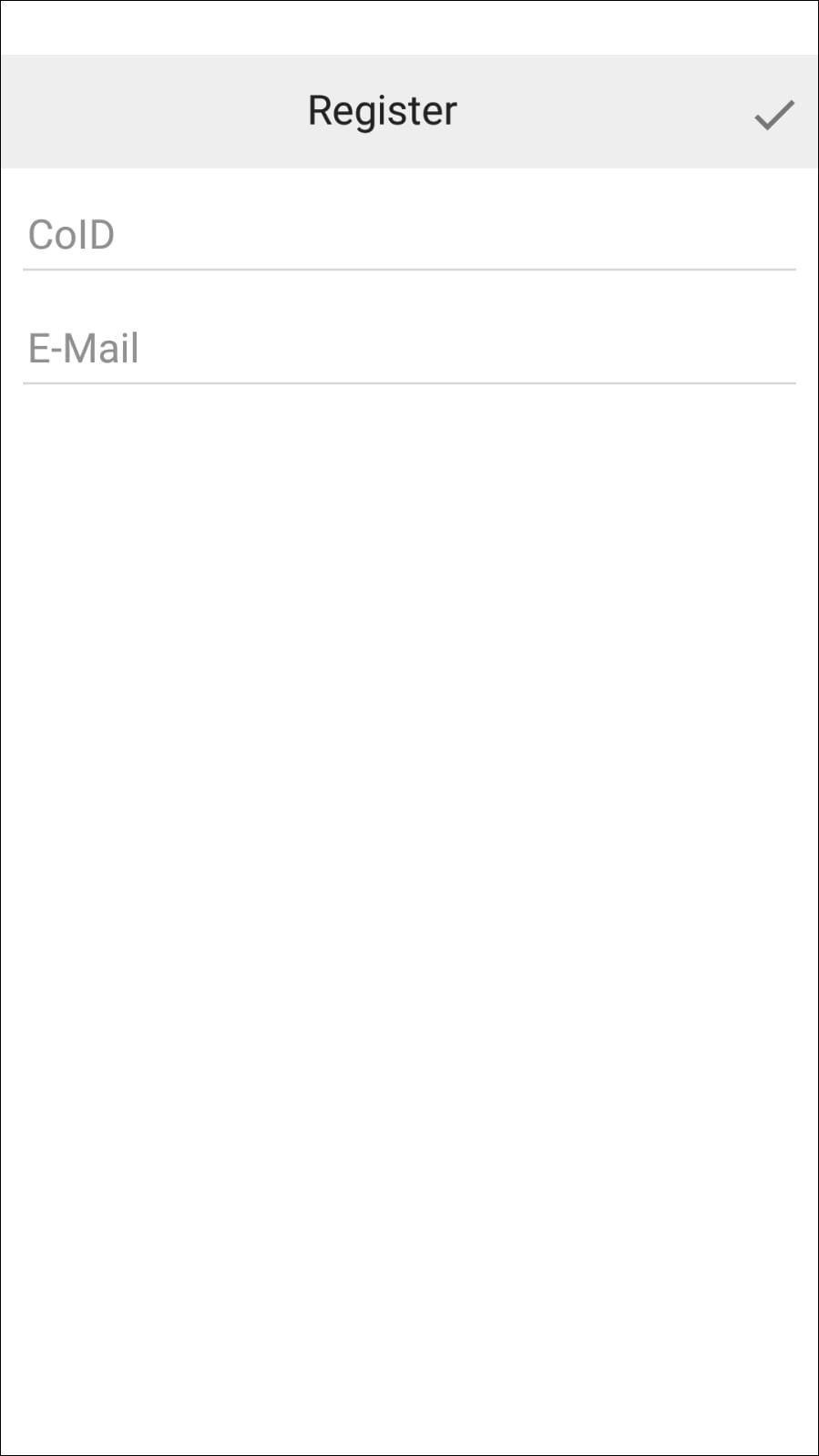
Enter your CompanyID and a valid Company E-Mail Adress here.
After you have registered, you will receive an E-Mail on the E-Mail address you have provided. Enter this token on the following page in order to finish the registration.
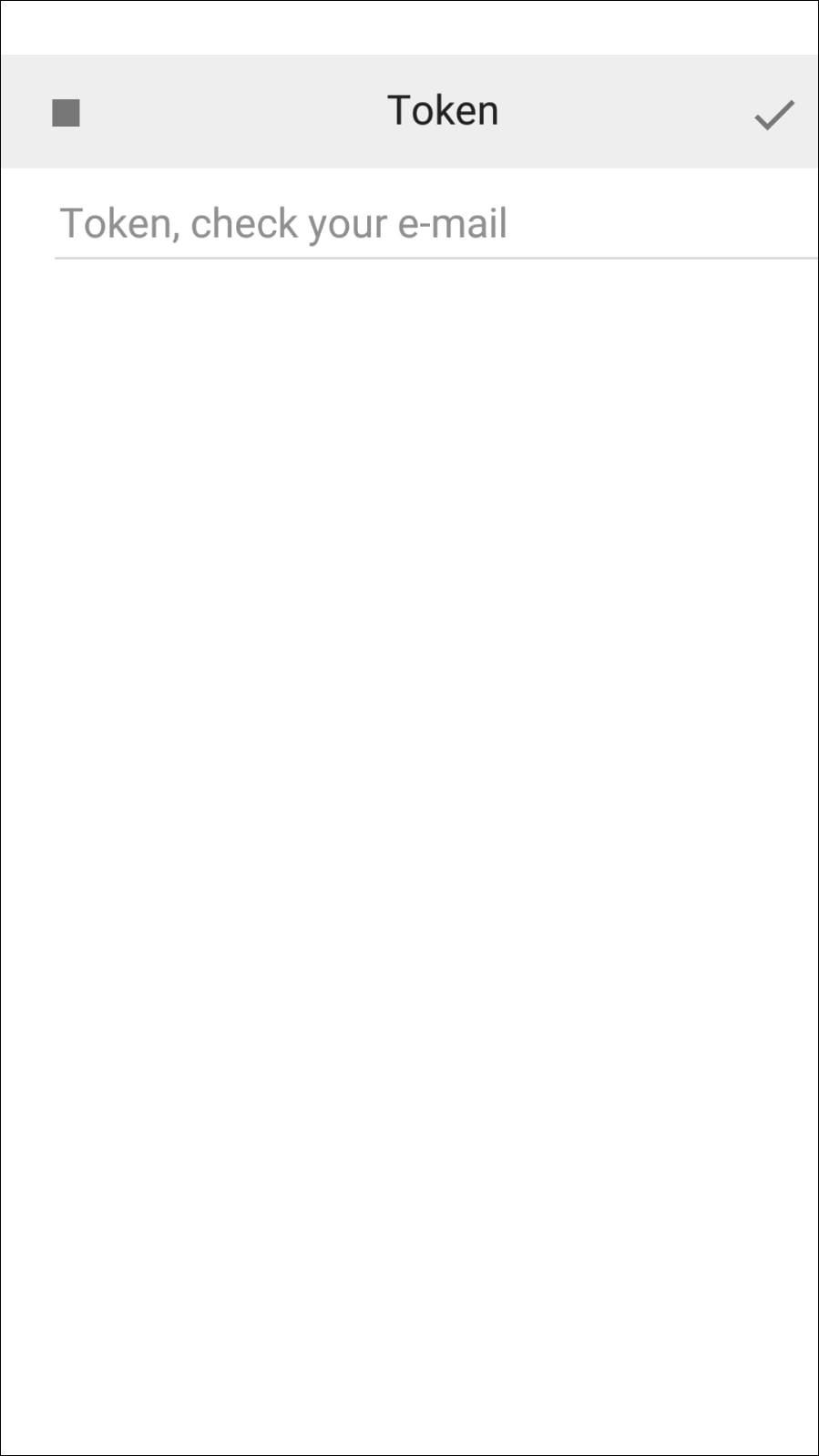
|
Please note:
Submit your token within the next two minutes. Otherwise the token will no longer be valid. If you haven't submitted your token within your timeframe, the registration needs to be done again. |
Registration of Devices via MDM (Mobile Device Management) Systems
Using the app configuration of an MDM system, you can pass the required registration data directly to your mobile devices.
|
Note: App configuration via MDM is supported starting from the following versions: • bestinformed Android version 1.3.4 and higher • bestinformed iOS version 1.3.12 and higher |
1. Server-Side Preparation (best_local.ini)
To use registration via an MDM system, an MDM-token must first be defined on the Infoserver.
To do this, open the file best_local.ini in the installation directory of the Infoserver (default directory: C:\Program Files\Cordaware\best_srv\etc\best_local.ini) and add the option mdm_token with a freely selectable value under the [best_mob] section:
[best_mob]
mdm_token = ValueOfTheMDMToken

[best_mob] active = true use_ipv6 = false push_title = Cordaware bestinformed mobile push_body = A new info is available! push_system = System notification! mdm_token = ExampleMDMToken12345 |
Afterwards, restart the Cordaware_bestinformed_best_srv service to apply the changes.
In the next step, the value entered for mdm_token is configured as the configuration value in the app configuration of your MDM system (e.g., Microsoft Intune).
2. App Configuration in MDM
Specify the following configuration keys in the app configuration policy of your MDM system:
Setting |
Example Value / Configuration |
coid |
Your Company ID provided by Cordaware GmbH. |
The user's email address used to register with the Mobile App. |
|
token |
Enter the mdm_token previously defined in your best_local.ini here. |
allowunregister |
If you set this value to false, logging out is prevented. |
registeronstart |
If you set this value to true, the registration process is carried out automatically on the server using the configured Company ID (coid) and email address (email) with the MDM-token (token) when the app is opened. |
|
Tip for Microsoft Intune: If you enter the variable {{mail}} as the configuration value for the configuration key email, Microsoft Intune automatically inserts the email address of the user to whom the respective device has been assigned. |